
WebP vs JPG: Which Image Format Is Better for Websites?
Compare WebP and JPG for website images. Learn how each format affects file size, loading speed, image quality, browser compatibility and SEO performance.
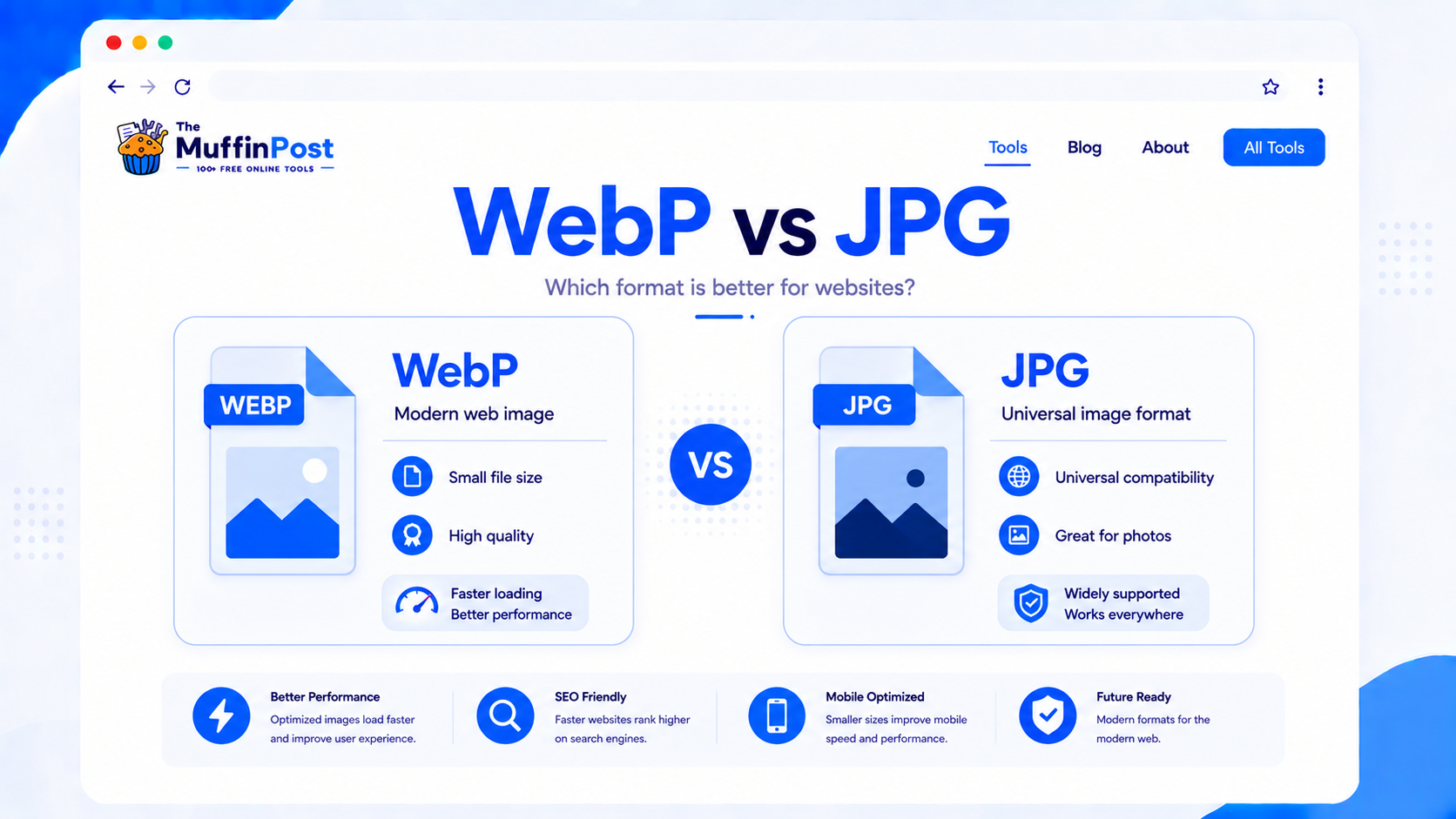
Quick summary
WebP is usually the better image format for modern websites because it can deliver smaller files with strong visual quality. JPG is still useful for maximum compatibility, photography workflows and older systems. For most website images, WebP offers better performance, while JPG remains a safe fallback.
Key takeaways
- WebP usually creates smaller image files than JPG while keeping good visual quality.
- JPG remains widely supported and is still useful for photos, email, older tools and simple compatibility.
- For websites, WebP is often the better choice for performance, SEO and faster loading pages.
What is the difference between WebP and JPG?
WebP and JPG are both image formats used on websites, but they were created for different eras of the web. JPG is an older and extremely common photo format. It uses lossy compression, which helps reduce file size but can introduce visible artifacts if the image is compressed too much.
WebP is a newer web image format designed for better compression and faster loading. It can often produce smaller files than JPG while keeping similar visual quality. WebP also supports features that JPG does not, including transparency and animation in supported use cases.
Why this matters for websites
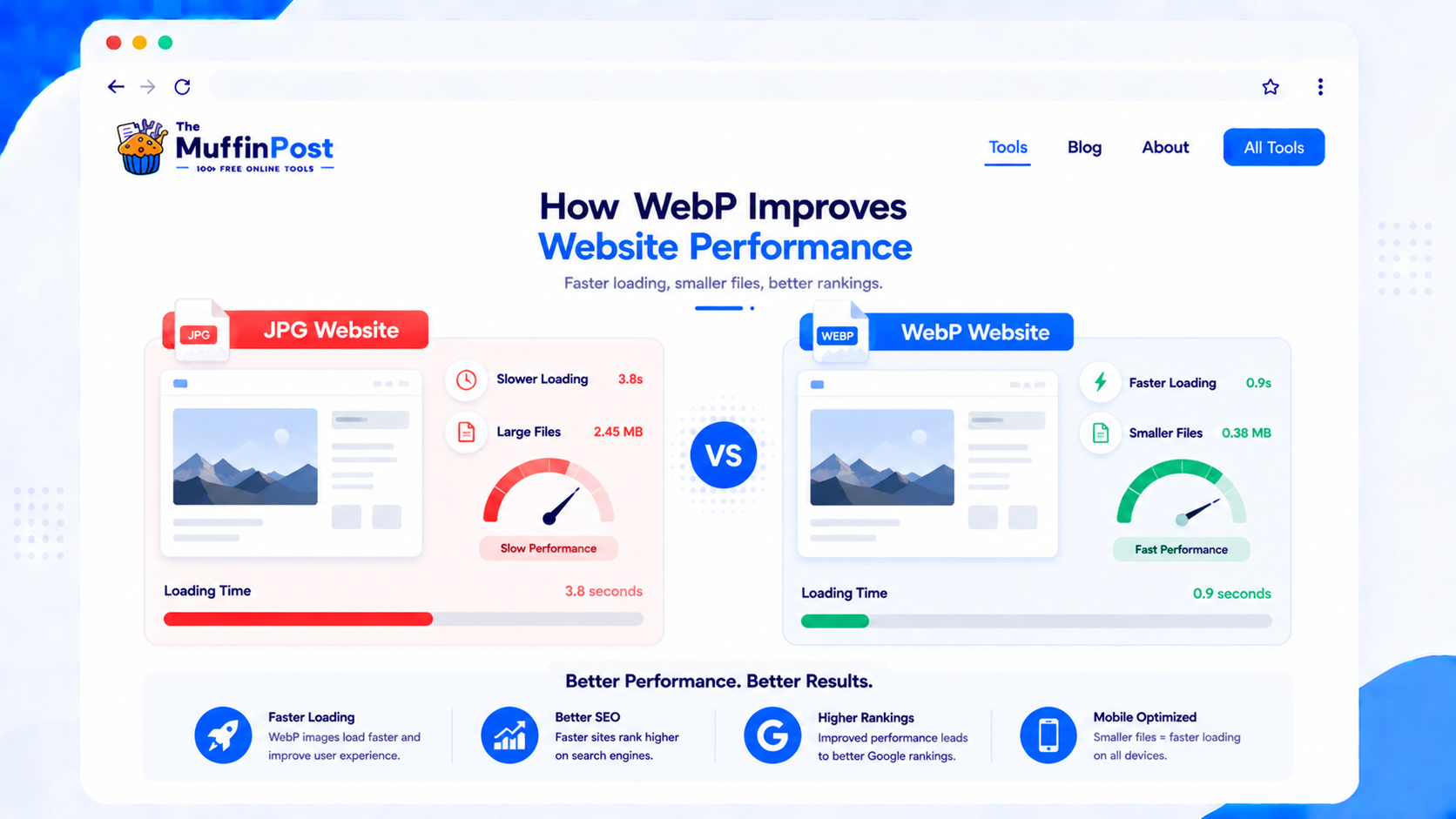
Image file size directly affects loading speed. Large images can slow down pages, especially on mobile connections. Because WebP often produces smaller files than JPG, it can help improve page speed, user experience and overall website performance.
WebP vs JPG comparison
The main difference between WebP and JPG is efficiency. WebP is usually more efficient for websites, while JPG is still one of the safest formats for broad compatibility.
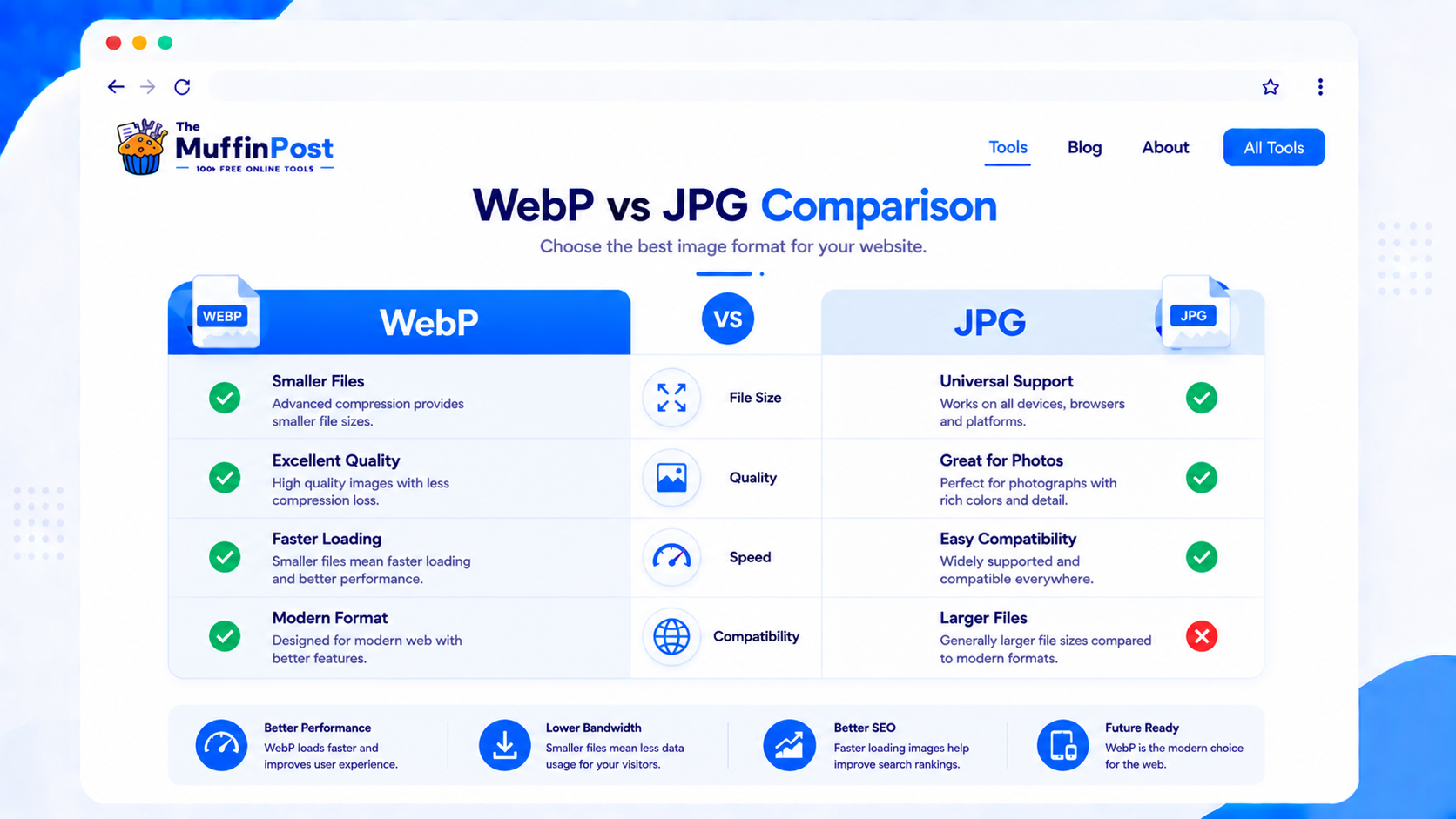
| Feature | WebP | JPG |
|---|---|---|
| File size | Usually smaller | Usually larger |
| Image quality | Strong quality at smaller sizes | Good photo quality, but larger files |
| Website speed | Better for performance | Can be slower if not compressed |
| Compatibility | Modern browser support | Very broad support |
| Transparency | Supported | Not supported |
Complete WebP and JPG workflows
Choosing the format is only the first step. Most website image workflows also include resizing, compression and compatibility checks.
Why WebP is better for website performance
WebP is often better for websites because it can reduce image file size without a major visible loss in quality. Smaller images load faster, use less bandwidth and create a smoother experience for visitors on mobile and desktop.
WebP, JPG or PNG: which should you use?
The best format depends on the image type, browser compatibility and whether transparency is required.
Choose WebP
Use WebP for modern websites when smaller files and strong quality are the main goals.
Choose JPG
Use JPG for broad compatibility, photography workflows and systems that do not support WebP.
Choose PNG
Use PNG for sharp graphics, screenshots and transparent images when WebP is not appropriate.

Start optimizing website images
Convert JPG or PNG files to WebP, resize oversized images and compress the result before publishing.
Open JPG to WebPView Image ToolsWebP vs JPG file size
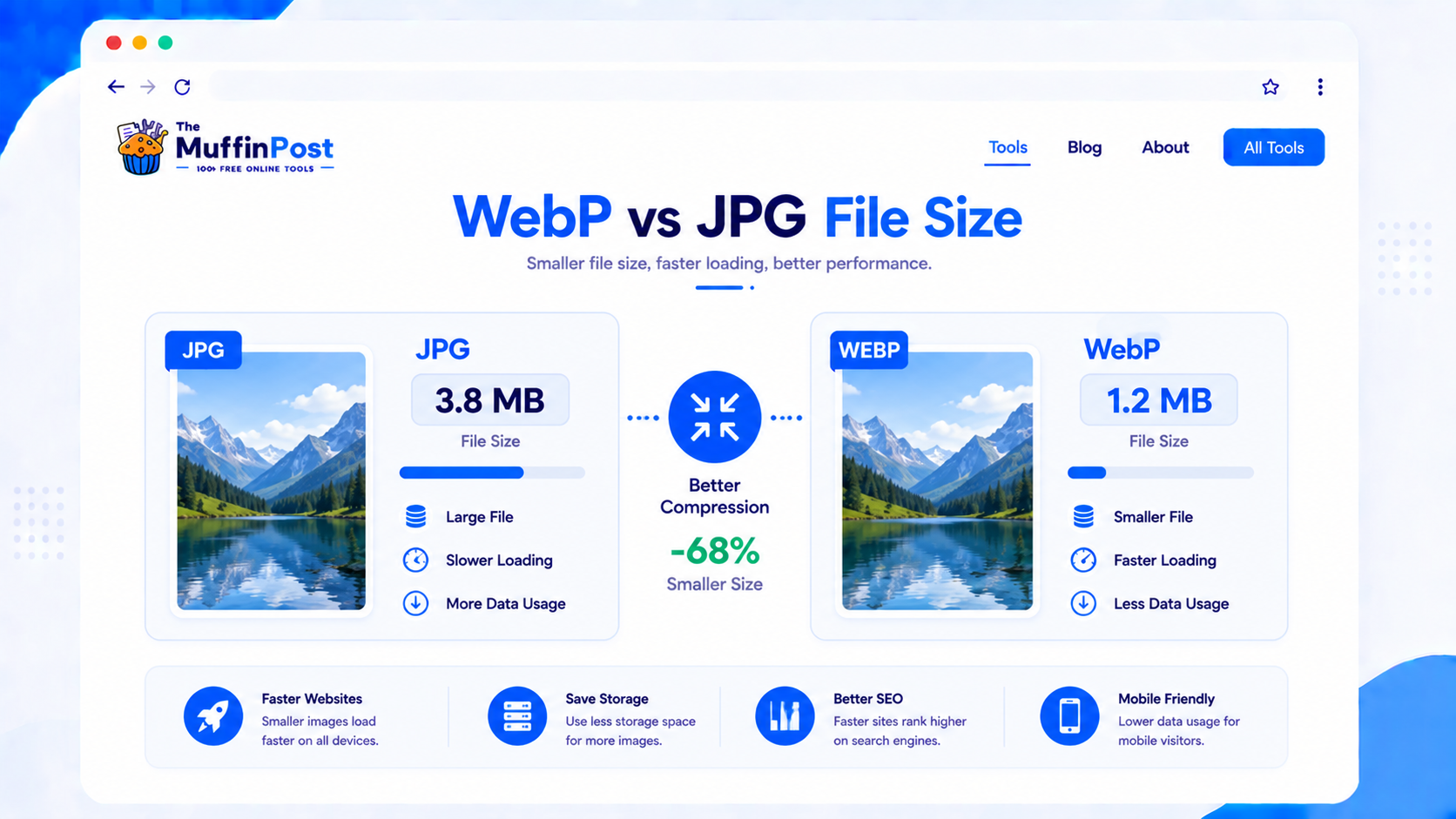
File size is one of the strongest reasons to use WebP. A WebP image can often be much smaller than a JPG version while still looking clear. This is especially useful for blogs, landing pages, product images and image-heavy websites.
Use WebP for speed
Choose WebP when your main goal is faster loading and better website performance.
Use JPG for compatibility
Choose JPG when you need the safest format for older software, email or basic photo workflows.
Compress images
Use the Compress Image tool to reduce file size even more.
Common WebP and JPG mistakes
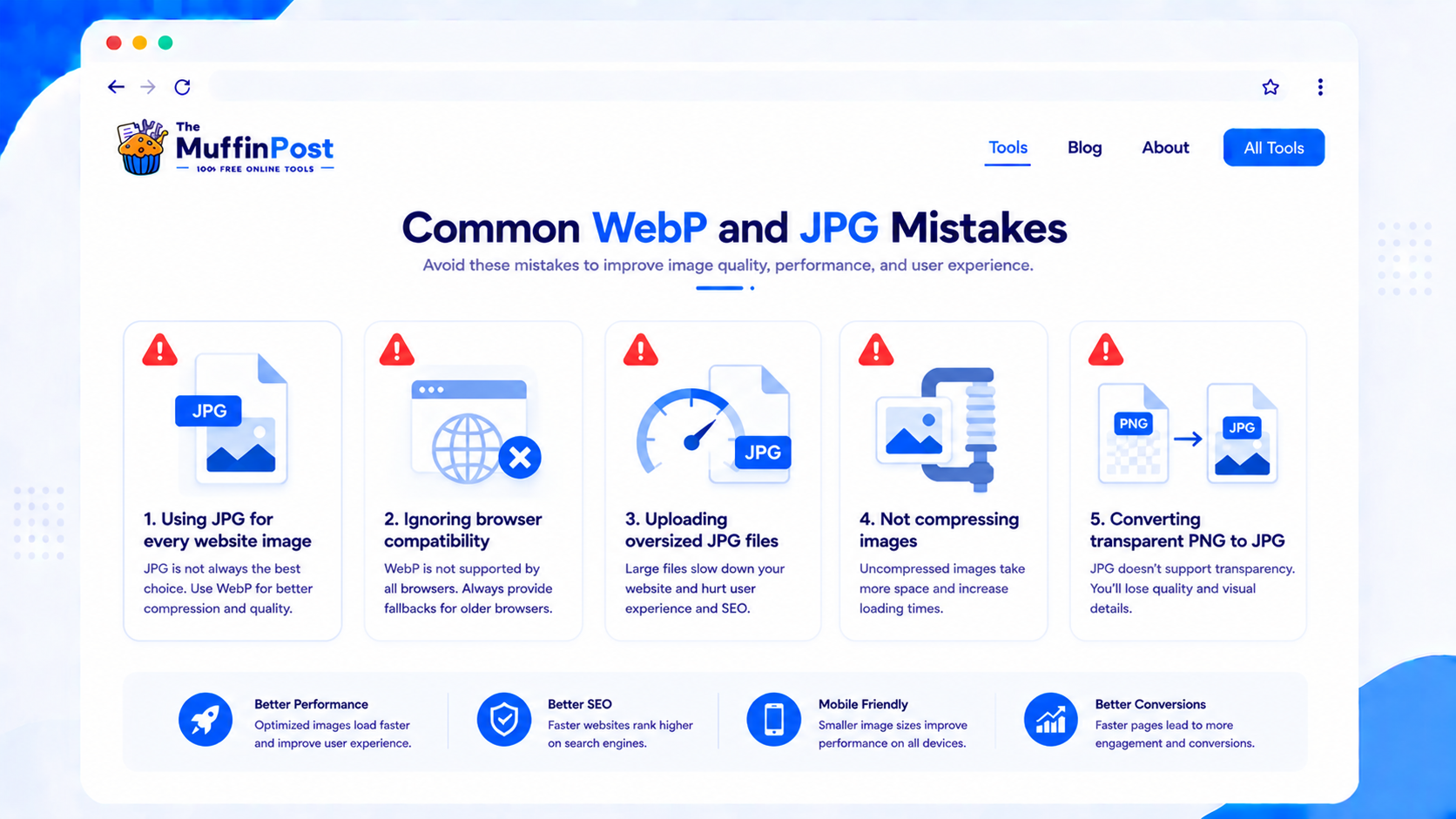
JPG is useful, but it is not always the best choice for modern websites. WebP often creates smaller files for web pages.
Even WebP images should be optimized. Large images can slow down pages and hurt user experience.
Should you use WebP or JPG?
For most modern websites, WebP is the better default choice because it helps reduce file size and improve loading speed. JPG is still useful when you need maximum compatibility or when working with older systems that do not support WebP.
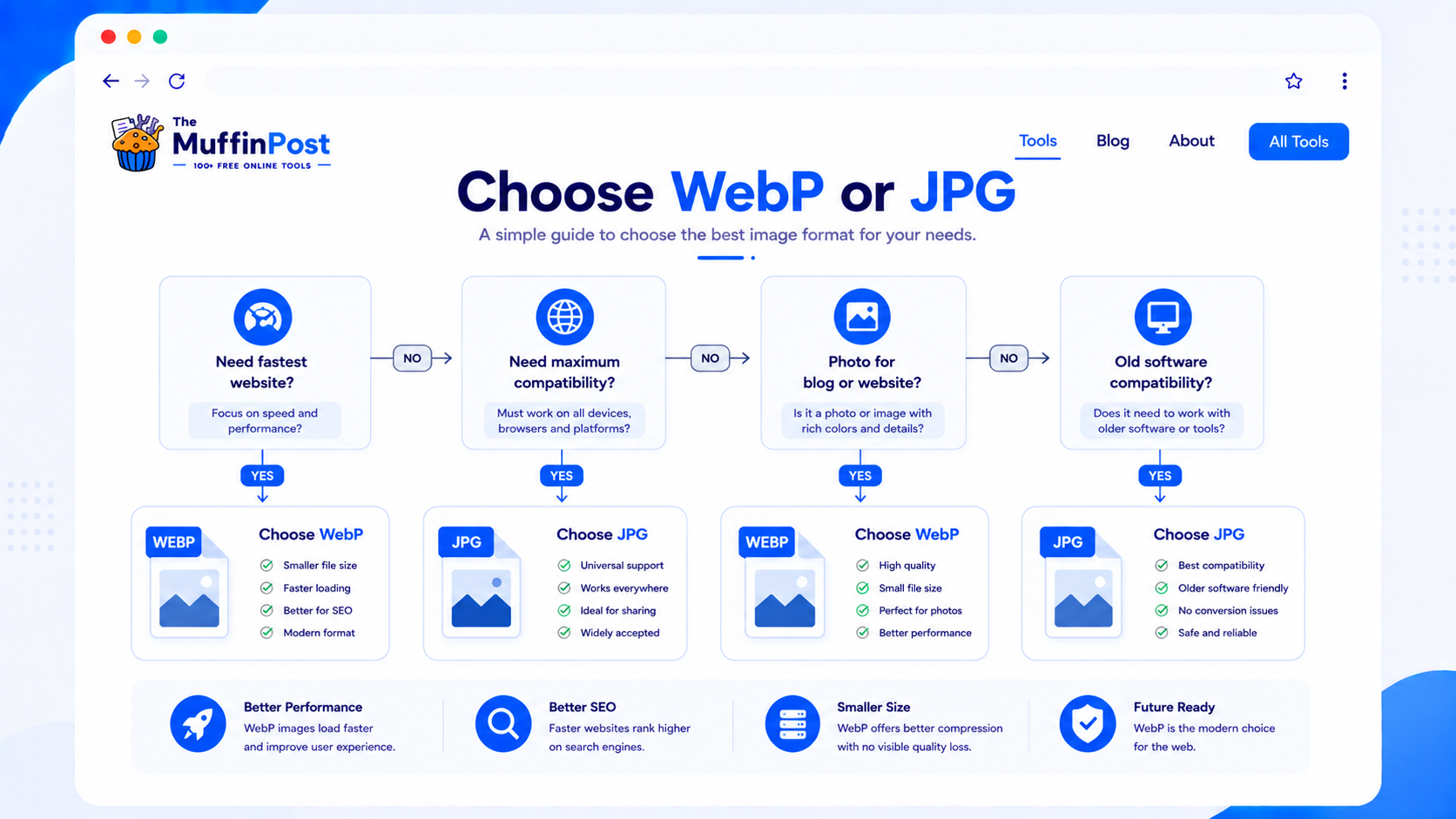
Image Learning Center
Continue with the complete image format and optimization guide collection.
Frequently asked questions
Is WebP better than JPG?
For most modern websites, WebP is better because it usually creates smaller files with strong visual quality. JPG is still useful for compatibility.
Does WebP reduce image quality?
WebP can reduce file size while keeping good visual quality. Like JPG, quality depends on the compression settings used.
Is JPG still good for websites?
Yes. JPG is still useful for photos and broad compatibility, but WebP is often better for website performance.
Can I convert JPG to WebP?
Yes. You can use the JPG to WebP tool to convert JPG images into WebP format online.
Can I convert WebP back to JPG?
Yes. Use the WebP to JPG tool when you need a JPG version for compatibility or older software.
Which format is best for SEO?
WebP is often better for SEO performance because smaller images can improve loading speed and user experience.
Does WebP support transparency?
Yes. WebP supports transparency, while JPG does not.
Should I replace all JPG images with WebP?
For websites, converting large JPG images to WebP can be helpful. However, keep JPG versions when compatibility is important.
About the author
The MuffinPost Editorial Team creates practical guides for online tools, productivity, file conversion, calculators, marketing workflows and developer utilities.
Complete your website image workflow
Convert, resize and compress images using the complete collection of free browser-based image tools.
Convert JPG to WebPCompress ImageBrowse Image Tools