
How to Merge PDF Files Online for Free
Learn how to combine multiple PDF files into one clean document using a free browser-based PDF merger, with practical tips for file order, quality, size and organization.
Quick summary
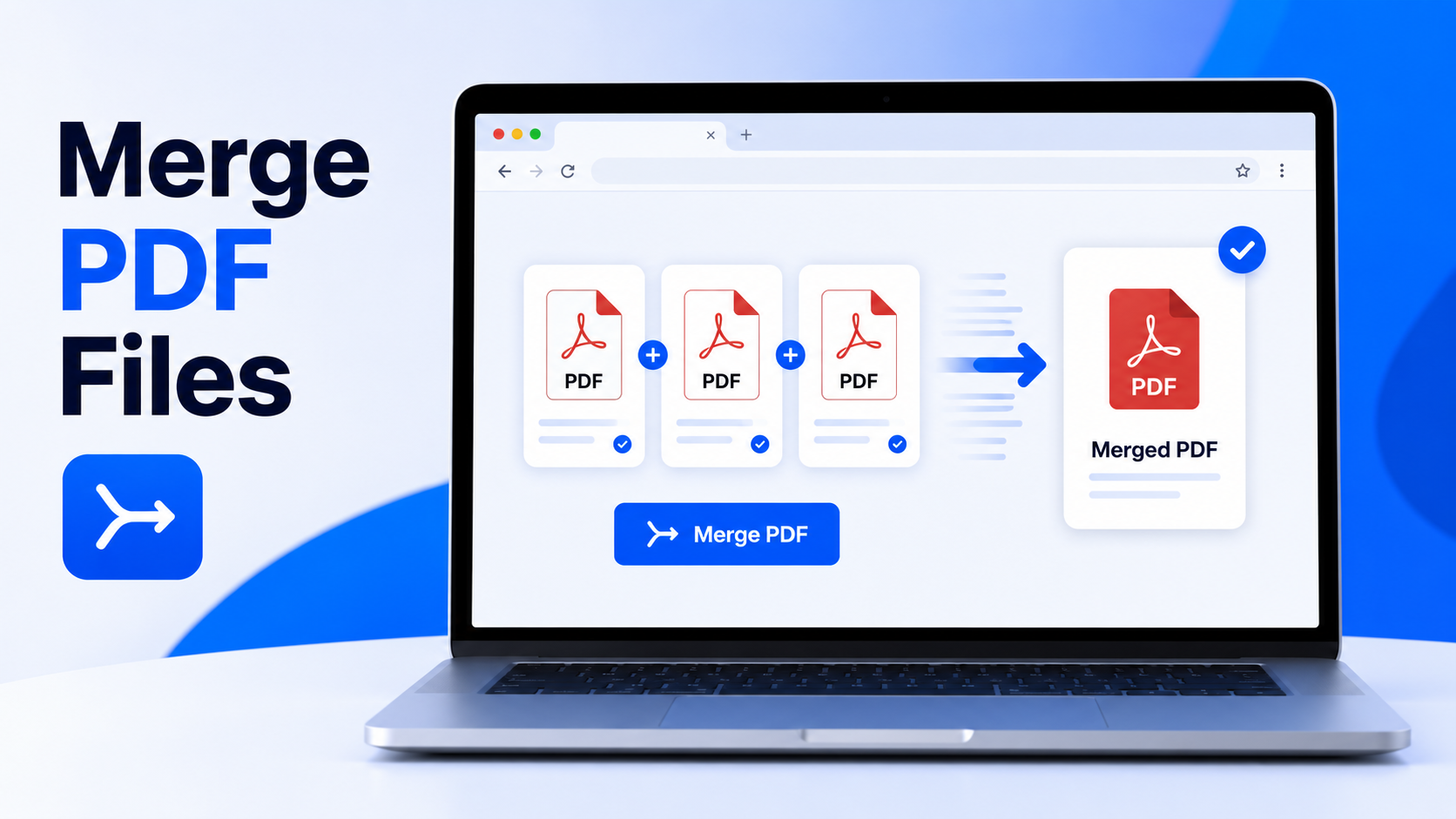
The fastest way to merge PDF files is to upload your documents to a free online PDF merger, arrange them in the correct order and download the final combined PDF. This is useful for contracts, invoices, school documents, reports, forms, presentations and scanned pages.
Key takeaways
- You can merge multiple PDF files online without installing software.
- Always check file order before downloading the final document.
- Compress the merged PDF afterward when the final file is too large.
- Use page cleanup tools before sending official or business documents.
What does it mean to merge PDF files?
Merging PDF files means combining two or more separate PDF documents into one single file. Instead of sending several attachments, you create one organized document containing every page in the order you choose.
For example, you might merge a cover page, signed form, invoice and supporting documents into one final PDF. This makes sharing easier and helps the recipient review everything without opening several files.
When should you merge PDFs?
- Combining scanned pages into one document.
- Sending multiple invoices as one PDF.
- Joining reports, forms, contracts or proposals.
- Organizing school, work or client documents.
- Creating one file before uploading to a portal.
How to merge PDF files online step by step
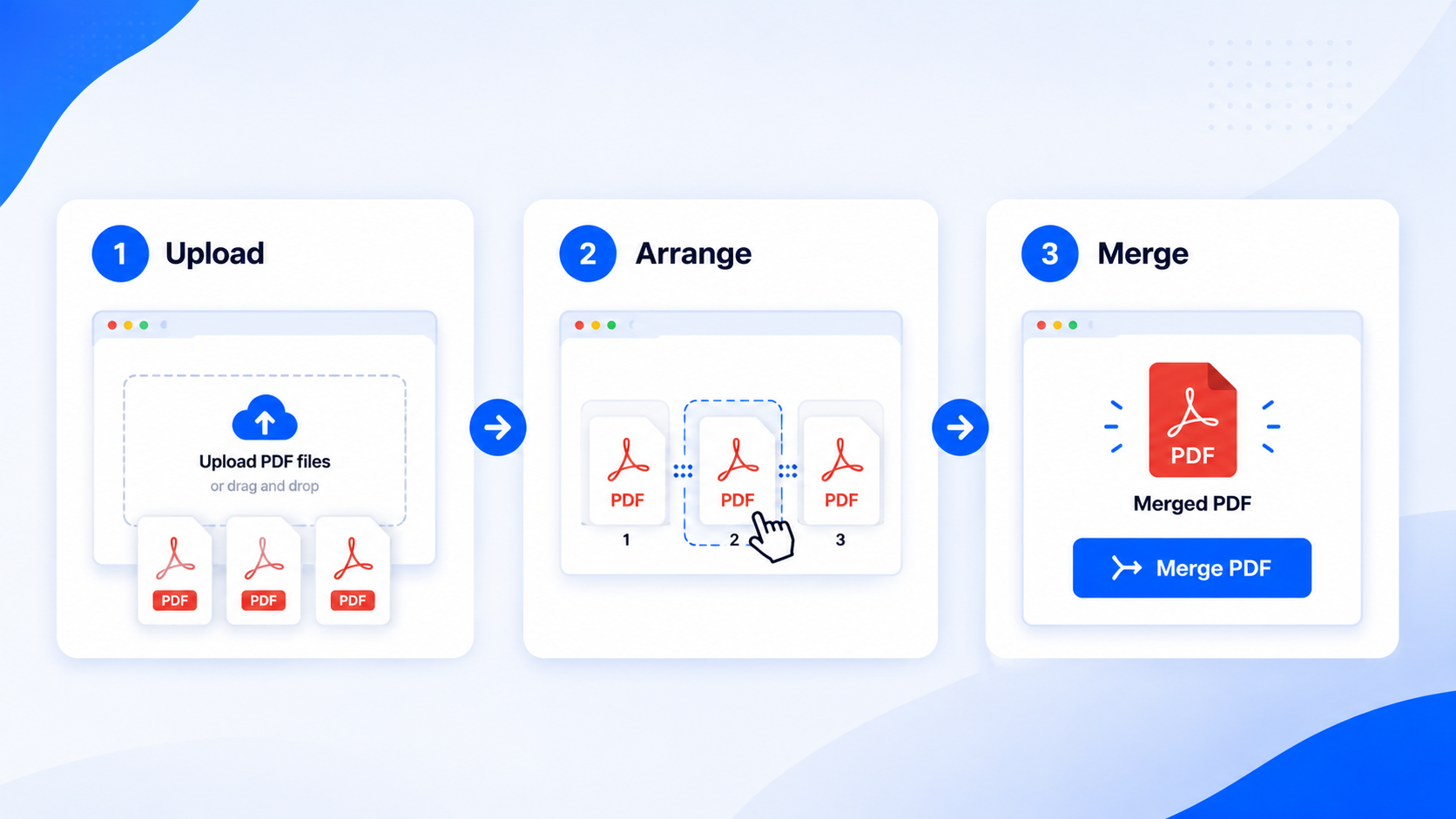
The process is simple: choose your files, review their order, merge them and download the result. A browser-based tool avoids installing software or learning a complex editor.
Step 1: Open the Merge PDF tool
Open the free Merge PDF tool and prepare the files you want to combine.
Step 2: Upload your PDF files
Select two or more PDF documents. Clear file names such as report-part-1.pdf and report-part-2.pdf make ordering easier.
Step 3: Arrange the correct order
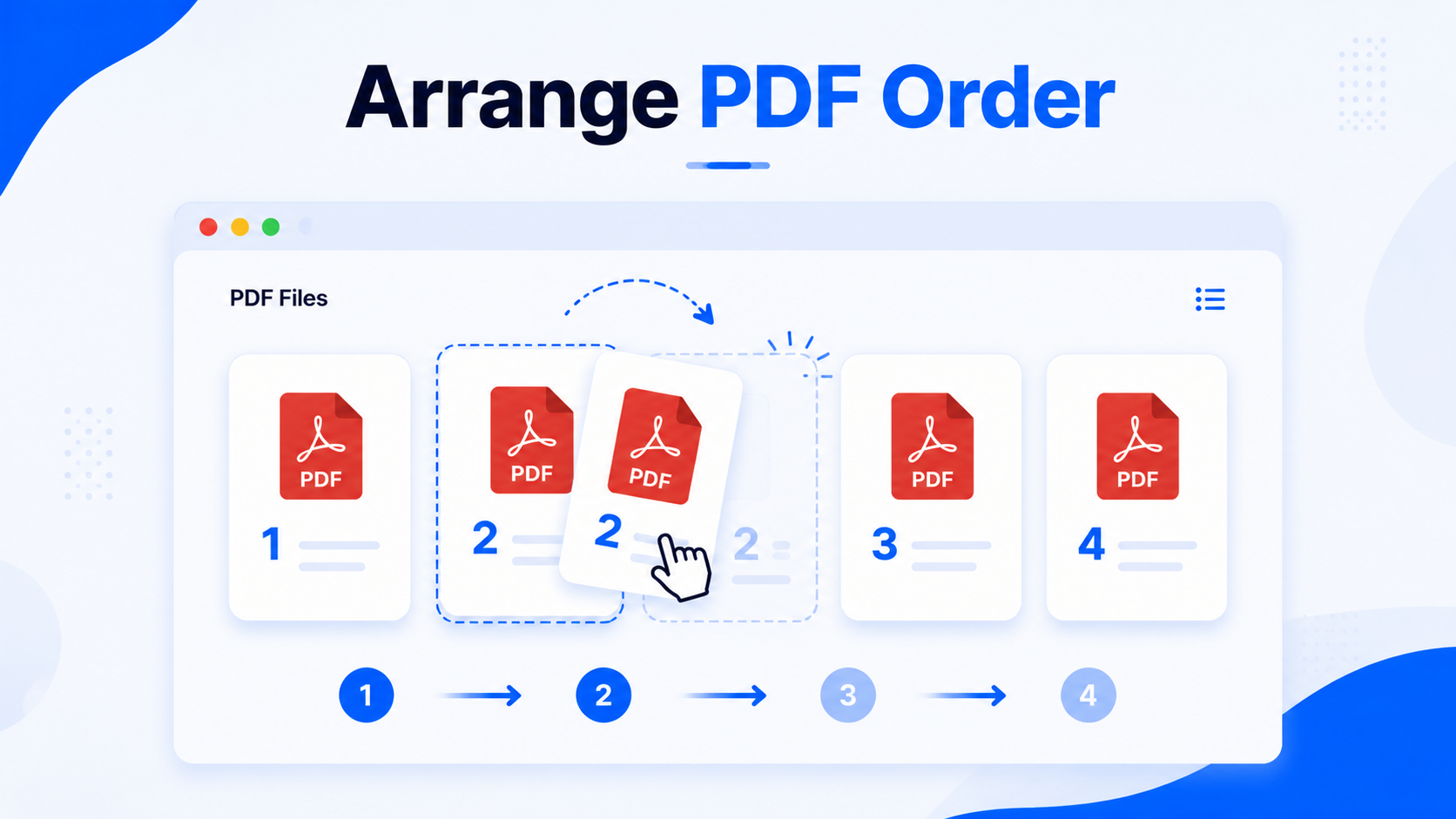
The first uploaded file becomes the first section of the final document. Move each file until the sequence matches your intended structure.
Step 4: Merge and download
Create the combined PDF, download it and open the final file once to confirm the order and page count.
Complete PDF workflow after merging
Merging is often only the first step. A polished document usually continues through cleanup, numbering, compression and conversion.
Why PDF order matters before merging
Incorrect page order is the most common merging mistake. With contracts, invoices, scanned pages or reports, sequence can change the meaning of the document. Review the structure before creating the final file.
| Use case | Recommended order | Helpful tool |
|---|---|---|
| Business proposal | Cover, proposal, pricing, terms, signature | Merge PDF |
| Scanned document | Page 1, page 2, page 3, attachments | Extract Pages |
| Large PDF package | Main document, supporting files, appendix | Compress PDF |
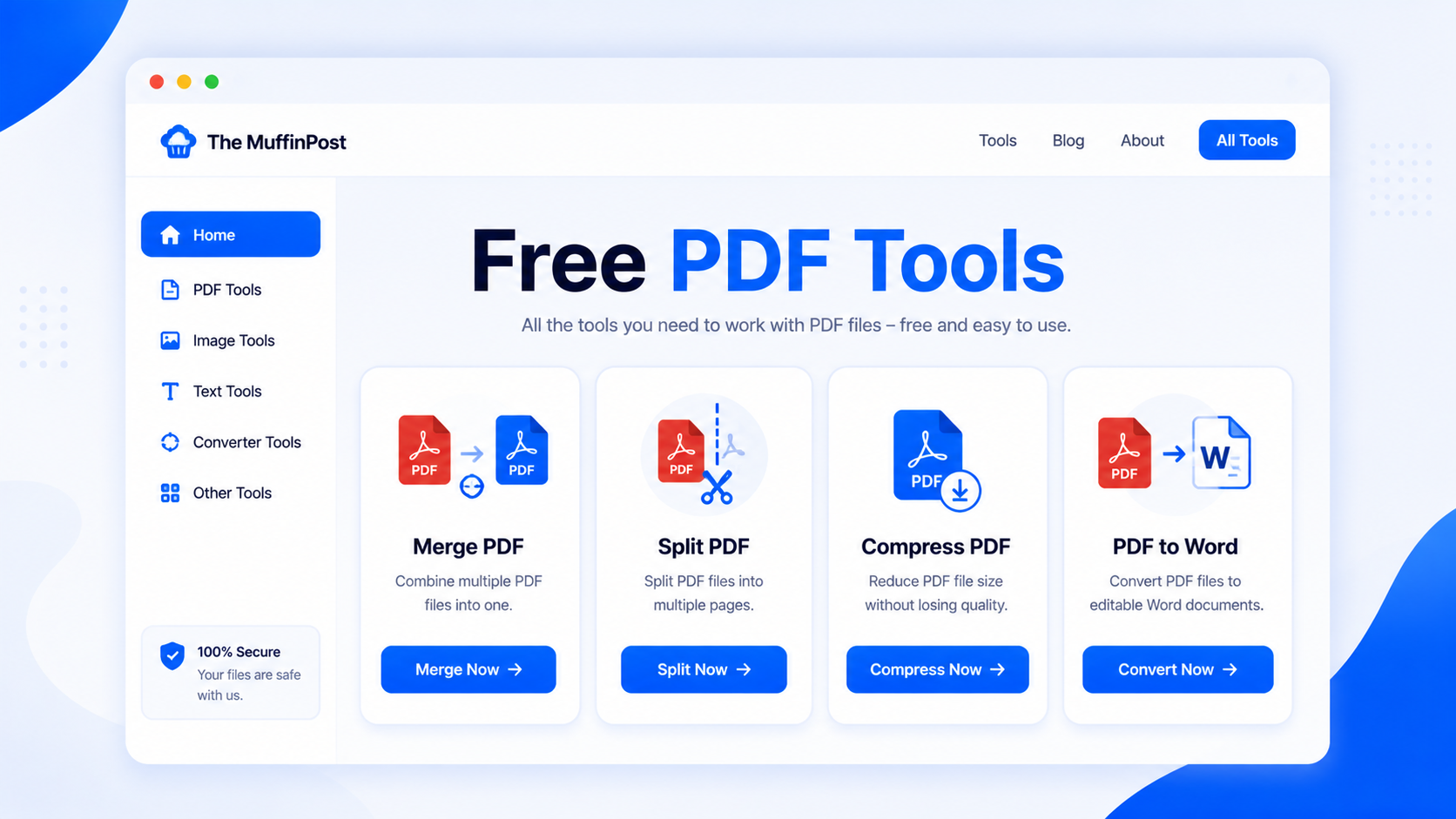
Start here: merge your PDF files
Combine your documents first, then continue with compression, cleanup, numbering or conversion.
Open Merge PDFView PDF ToolsAfter merging, what should you do next?
Choose the next step according to how the final document will be used.
Best practices for merging PDF files
Name files clearly
Use descriptive file names before uploading so the final order is easier to understand.
Check page order
Review the sequence before downloading, especially when combining scanned documents.
Compress if needed
Use Compress PDF when the merged file is too large.
Should you merge first or compress first?
For most workflows, merge first and compress second. That gives you one final document to optimize. Compress source files first only when an individual PDF is unusually large and difficult to upload.
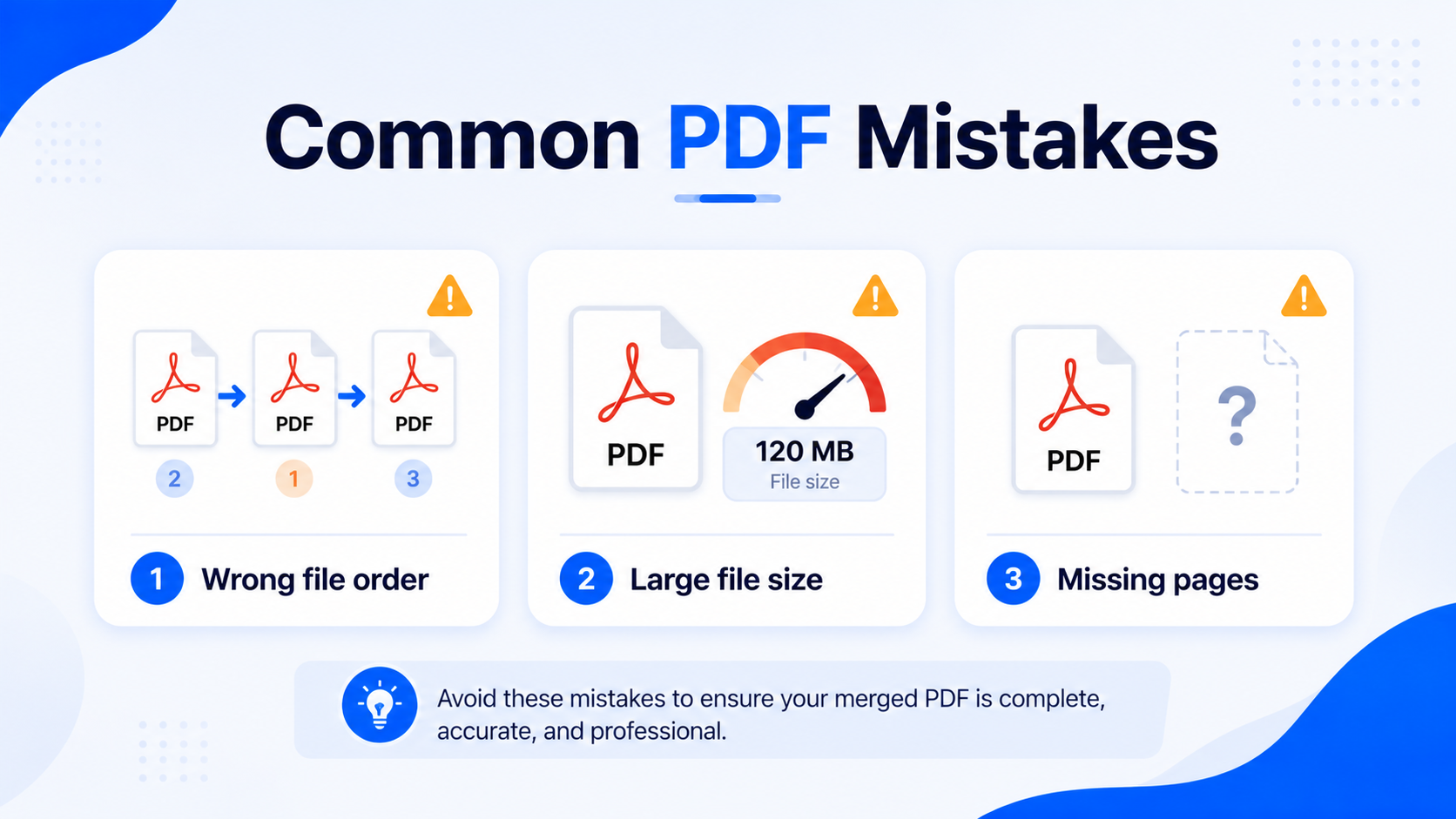
Common mistakes when merging PDFs
Documents uploaded in the wrong sequence create a confusing final PDF. Always confirm the order first.
Count pages before and after merging, especially with scanned documents.
Several image-heavy PDFs can create a very large merged file. Compress the final result before emailing or uploading it.
PDF Learning Center
Continue learning with the complete PDF guide collection.
Frequently asked questions
How do I merge PDF files online for free?
Open a free PDF merger, upload your PDF files, arrange them in the correct order and download the combined document.
Can I merge PDFs without installing software?
Yes. A browser-based tool lets you combine PDF files without installing a desktop program.
Does merging PDFs reduce quality?
Merging normally combines existing pages without intentionally reducing their quality.
Can I change the order before merging?
Yes. Arrange the files before creating the final PDF so the document follows the correct sequence.
What if the merged PDF is too large?
Use the Compress PDF tool after merging to reduce file size for email, upload or storage.
Can I split the merged PDF later?
Yes. Use Split PDF or Extract PDF Pages whenever you need to separate the document again.
Can I merge scanned PDF pages?
Yes. Check page order and file size carefully because scanned pages can be image-heavy.
Are my files processed in the browser?
The MuffinPost Merge PDF tool is designed to combine compatible PDF files directly in the browser.
Popular PDF tools
Continue your workflow with the most useful PDF tools.
Merge PDF
Combine several PDFs into one.
Compress PDF
Reduce the final file size.
Split PDF
Separate pages or ranges.
Extract PDF Pages
Save only selected pages.
Delete PDF Pages
Remove unwanted pages.
Add Page Numbers
Number reports and ebooks.
PDF to JPG
Turn pages into images.
JPG to PDF
Create PDFs from images.
PDF to Word
Create an editable document.
Recommended reading next

About the author
The MuffinPost Editorial Team creates practical guides for online tools, productivity, file conversion, calculators, marketing workflows and developer utilities.
Complete your PDF project
Merge, compress, split, extract, delete pages, add page numbers or convert documents with the complete collection of free browser-based PDF tools.
Merge PDF NowBrowse All PDF ToolsRead Best PDF Tools Guide