How to Split PDF Files
Learn how to separate a PDF into smaller files, extract selected pages and organize documents using a free browser-based PDF splitting tool.
Quick summary
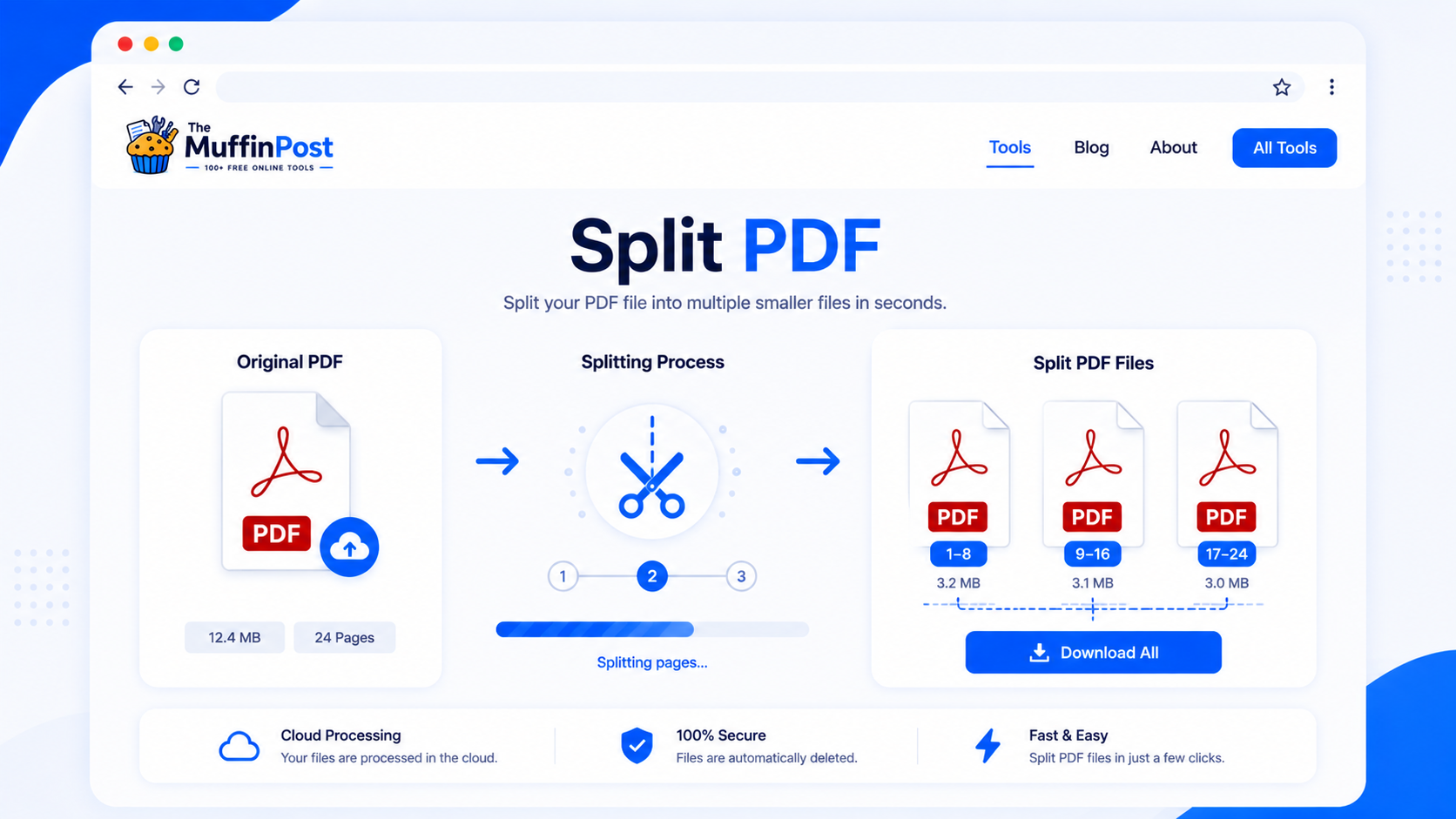
The easiest way to split a PDF is to upload the file to a free online PDF splitter, choose the pages you want to keep or separate, and download the new PDF files. This is useful for extracting chapters, removing extra pages, creating smaller documents and organizing scanned files.
Key takeaways
- You can split PDF files online without installing software.
- Choose page ranges carefully before downloading the final files.
- If you only need a few pages, use an extractor instead of sending the full document.
What does it mean to split a PDF?
Splitting a PDF means separating one PDF document into smaller files or extracting only the pages you need. Instead of sharing a long document with unnecessary pages, you can create a cleaner PDF that contains only the relevant section.
For example, you might split a 40-page report into separate chapters, extract only invoice pages from a scanned document, or remove pages before sending a smaller file to a client, school or online portal.
When should you split a PDF?
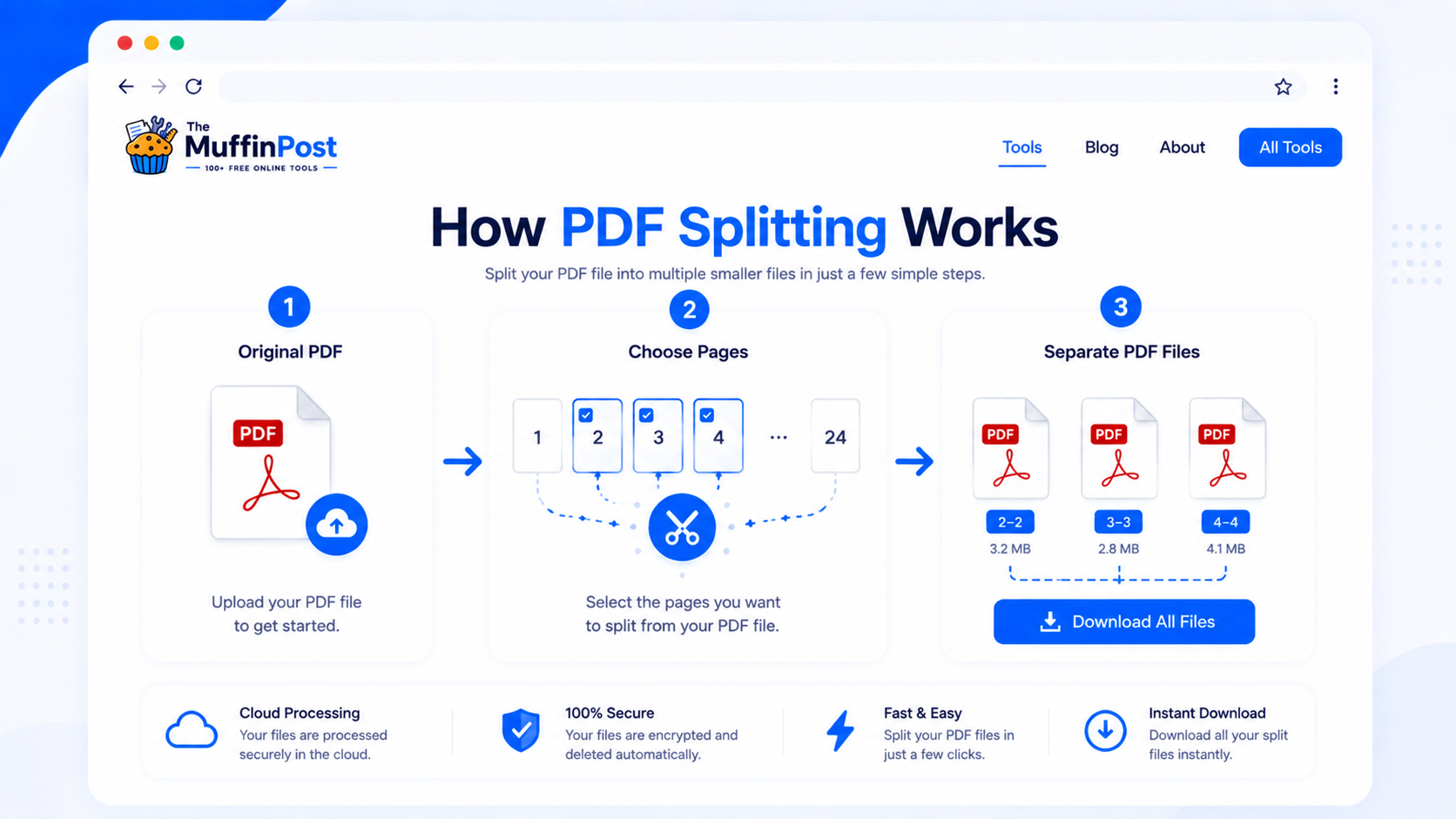
PDF splitting is helpful whenever a document contains more pages than you want to share, upload or store. It is also useful for organizing scanned documents, separating forms and preparing files for specific recipients.
- Extracting one chapter from a long PDF.
- Separating invoices, receipts or forms.
- Removing unnecessary pages before uploading.
- Creating smaller files from a large document.
- Sharing only the pages someone needs to see.
How to split PDF files online step by step
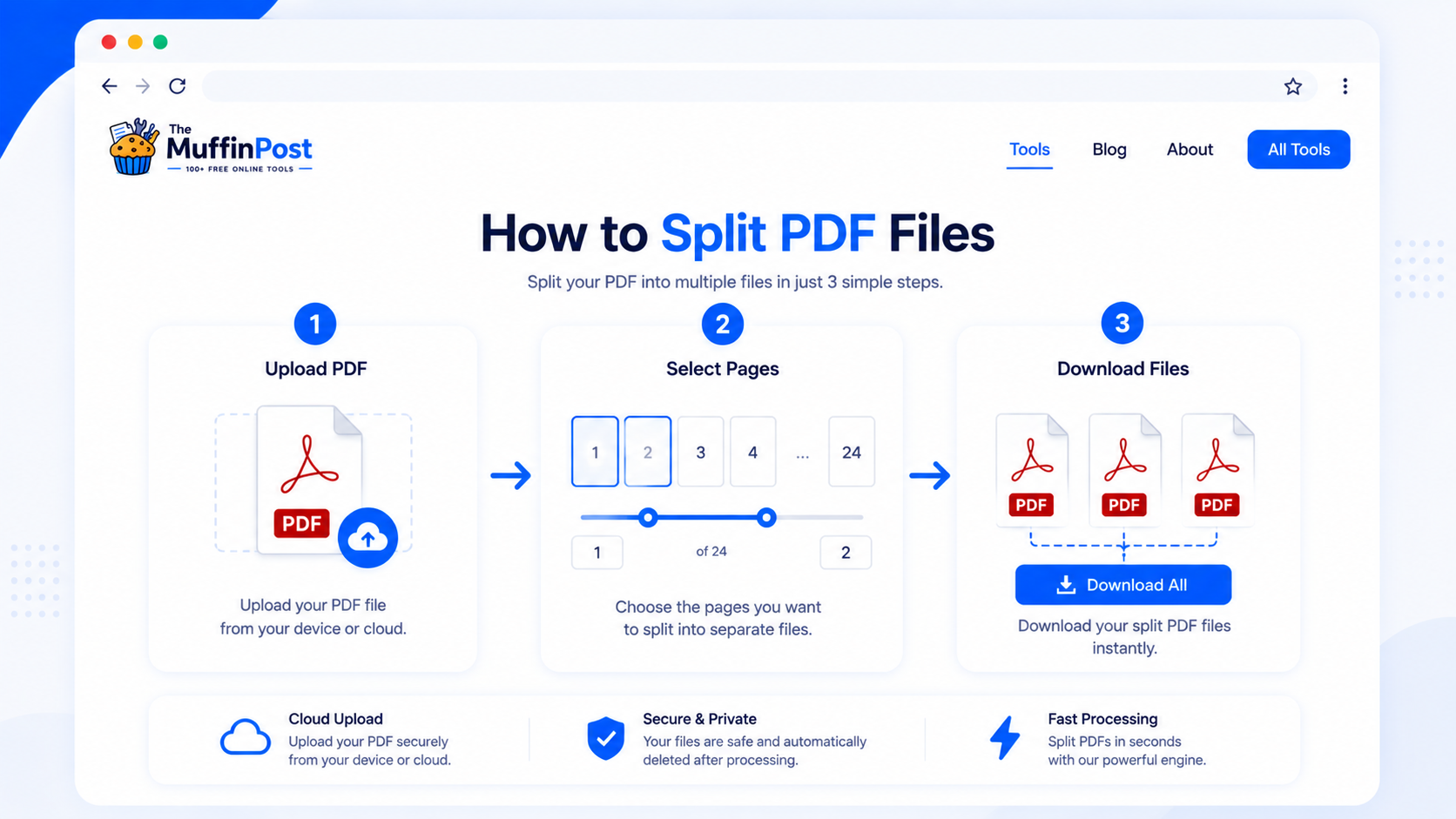
A free online PDF splitter lets you separate pages in a few simple steps. You open the tool, upload your document, select the pages or ranges you need, and download the new files.
Step 1: Open the Split PDF tool
Start by opening the free Split PDF tool. This tool is designed to separate PDF pages directly in your browser.
Step 2: Upload your PDF file
Select the PDF you want to split. If the document is large or scanned, give it a moment to load so you can review the page order clearly.
Step 3: Select pages or page ranges
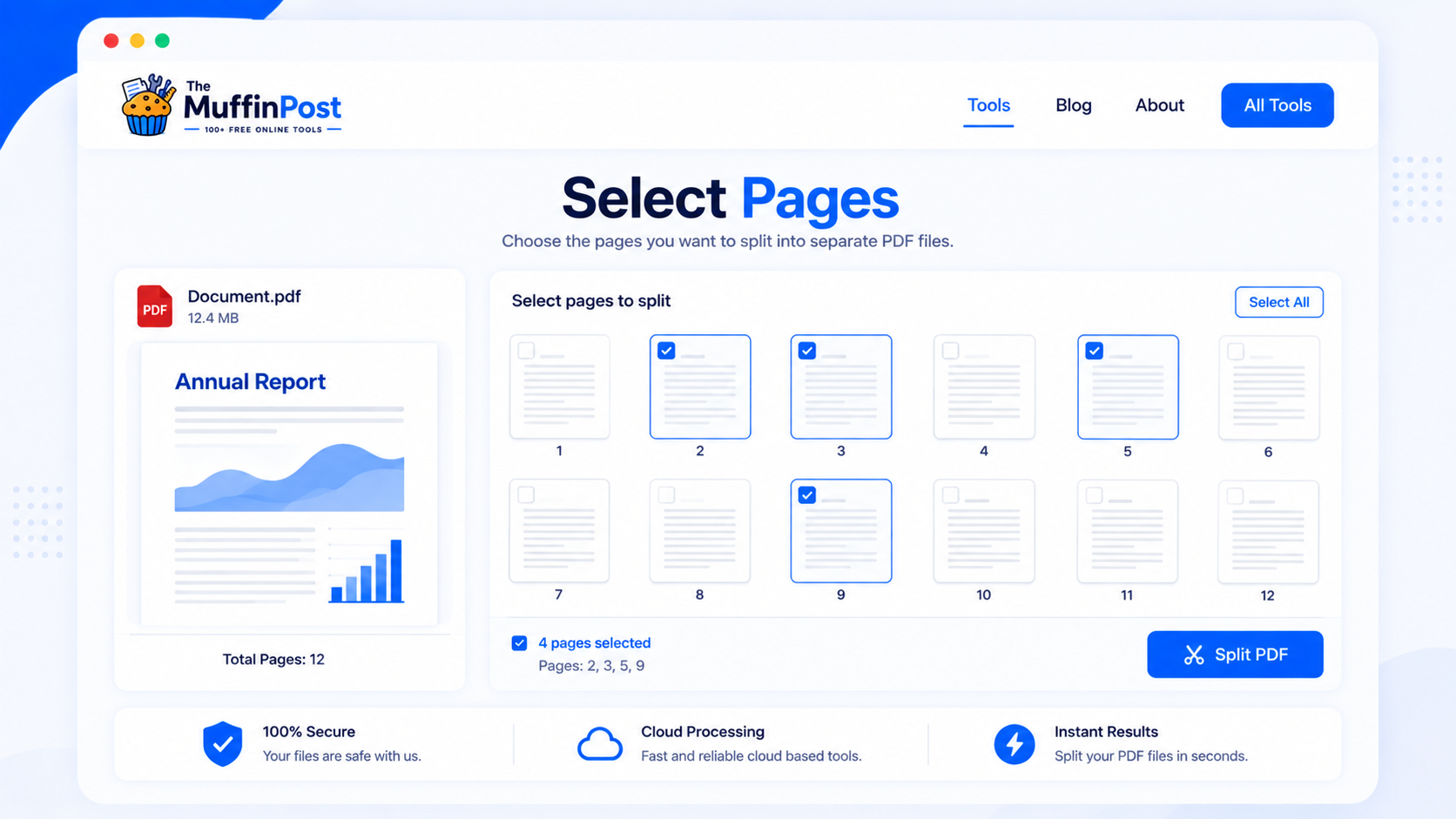
Choose the pages you want to extract or separate. You can usually select a single page, multiple pages or a range such as pages 2–5.
Step 4: Download the new PDF files
After splitting, download the separated PDF file or files. Open them once to confirm that the right pages were included and the order is correct.
How to choose the right pages before splitting
The most important part of splitting a PDF is selecting the correct pages. Before creating the final files, check whether you need one page, a continuous range or several separate sections.
| Goal | Best page selection | Helpful tool |
|---|---|---|
| Extract one section | Select the exact page range, such as 4–9 | Split PDF |
| Remove pages | Delete unwanted pages first | Delete PDF Pages |
| Keep only important pages | Extract selected pages into a new file | Extract PDF Pages |
| Make file smaller | Split large sections, then compress if needed | Compress PDF |
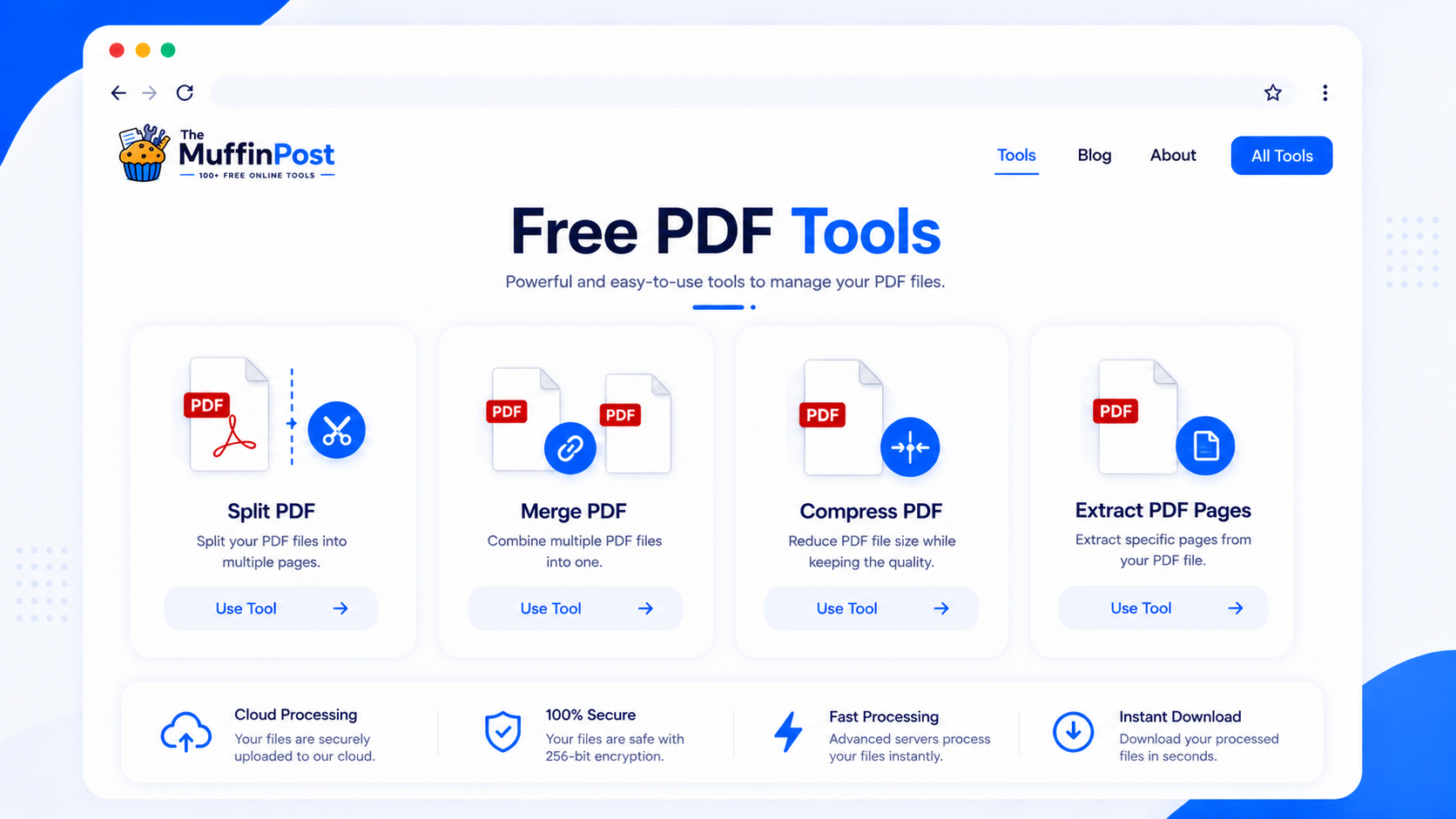
Try the free Split PDF tool
Use The MuffinPost Split PDF tool to separate pages, create smaller documents and organize PDF files directly in your browser. You can also merge, compress, rotate, extract and convert PDFs with related tools.
Open Split PDFView PDF ToolsBest practices for splitting PDF files
Check page numbers
Open the original PDF and confirm the exact pages you need before splitting the document.
Name files clearly
Use descriptive names like contract-pages-1-3.pdf or invoice-june.pdf so files stay organized.
Compress if needed
If the split PDF is still too large, reduce its file size with the Compress PDF tool.
Should you split before or after merging?
If you have one large document, split it first. If you are building a new document from several sources, merge first and then split only if you need to create separate sections.
Common PDF splitting mistakes
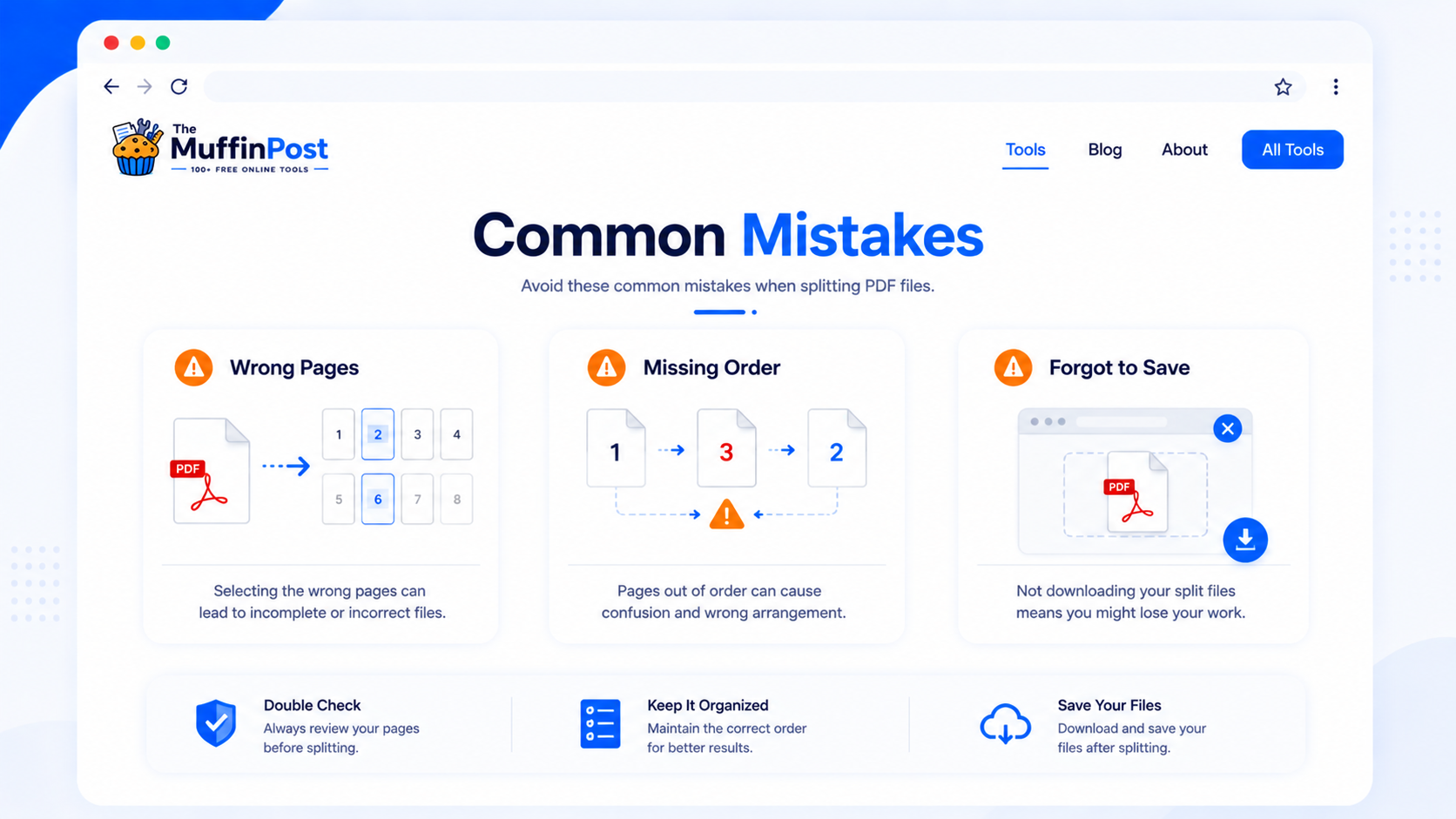
Page numbers can be confusing if the PDF has a cover page or table of contents. Always check the preview before splitting.
If you extract multiple sections, make sure the new files are named and ordered clearly.
Frequently asked questions
How do I split a PDF file online?
Open a free PDF splitter, upload your PDF, select the pages or page ranges you want, and download the separated PDF files.
Can I split a PDF without installing software?
Yes. A browser-based PDF splitter lets you separate pages online without installing a desktop program.
Can I extract only one page from a PDF?
Yes. Select the single page you need and download it as a separate PDF file.
Can I split a PDF into multiple files?
Yes. You can create separate files from different pages or ranges depending on how you want the document organized.
What if I selected the wrong pages?
Upload the original PDF again and choose the correct pages or ranges before downloading the final files.
Can I merge split PDFs again later?
Yes. Use the Merge PDF tool to combine separated PDF files back into one document.
Can I split scanned PDFs?
Yes. Scanned PDFs can be split by page, but you should check the page order and readability after downloading.
Which tools are related to PDF splitting?
Helpful related tools include Merge PDF, Compress PDF, Delete PDF Pages, Extract PDF Pages, Rotate PDF and PDF to Word.

About the author
The MuffinPost Editorial Team creates practical guides for online tools, productivity, file conversion, calculators, marketing workflows and developer utilities.