
How to Generate Secure Passwords Online
Learn how to generate secure passwords online, avoid common password mistakes, improve account security and use a free password generator safely.
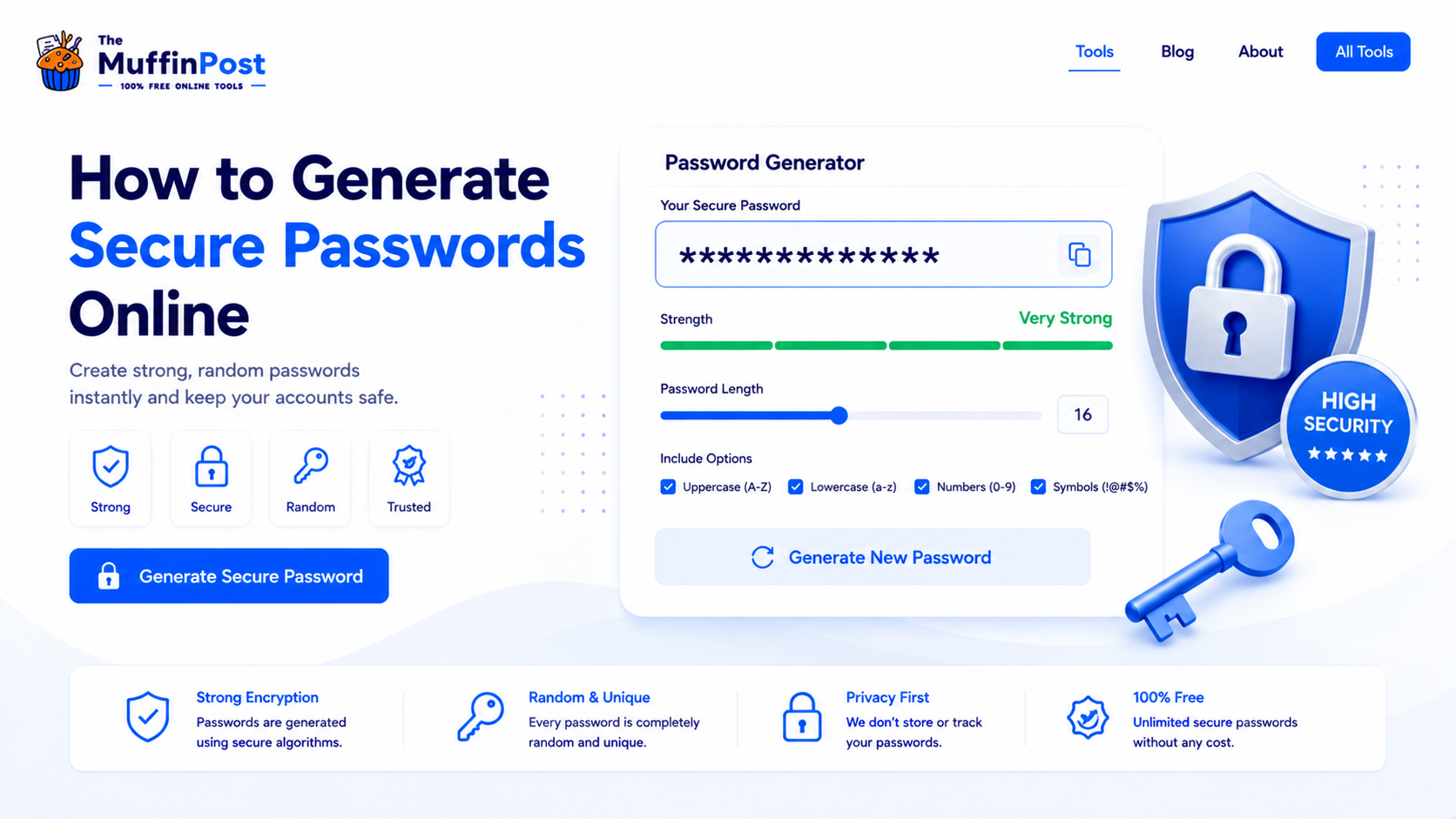
Quick summary
A secure password should be long, unique and difficult to guess. The safest approach is to use a trusted password generator to create random passwords with uppercase letters, lowercase letters, numbers and special characters. Each account should have its own password, and important accounts should use two-factor authentication.
Key takeaways
- Use long, random and unique passwords for every important account.
- Avoid names, birthdays, repeated patterns and common passwords.
- Use a password manager to store complex passwords safely.
What makes a password secure?
A secure password is difficult for another person or automated system to guess. Strong passwords are usually long, random and unique. They avoid personal details and do not reuse the same password across different websites.
Many weak passwords are easy to remember, but also easy to guess. A password like 123456, password or a birthday can be found quickly in common password lists. A generated password is much harder to predict because it uses random characters.
Why password length matters
Longer passwords are generally harder to crack than short passwords. Adding random characters, numbers and symbols can improve strength, but length is one of the most important factors. A long passphrase or a generated password is usually safer than a short clever word.
How to generate a secure password online
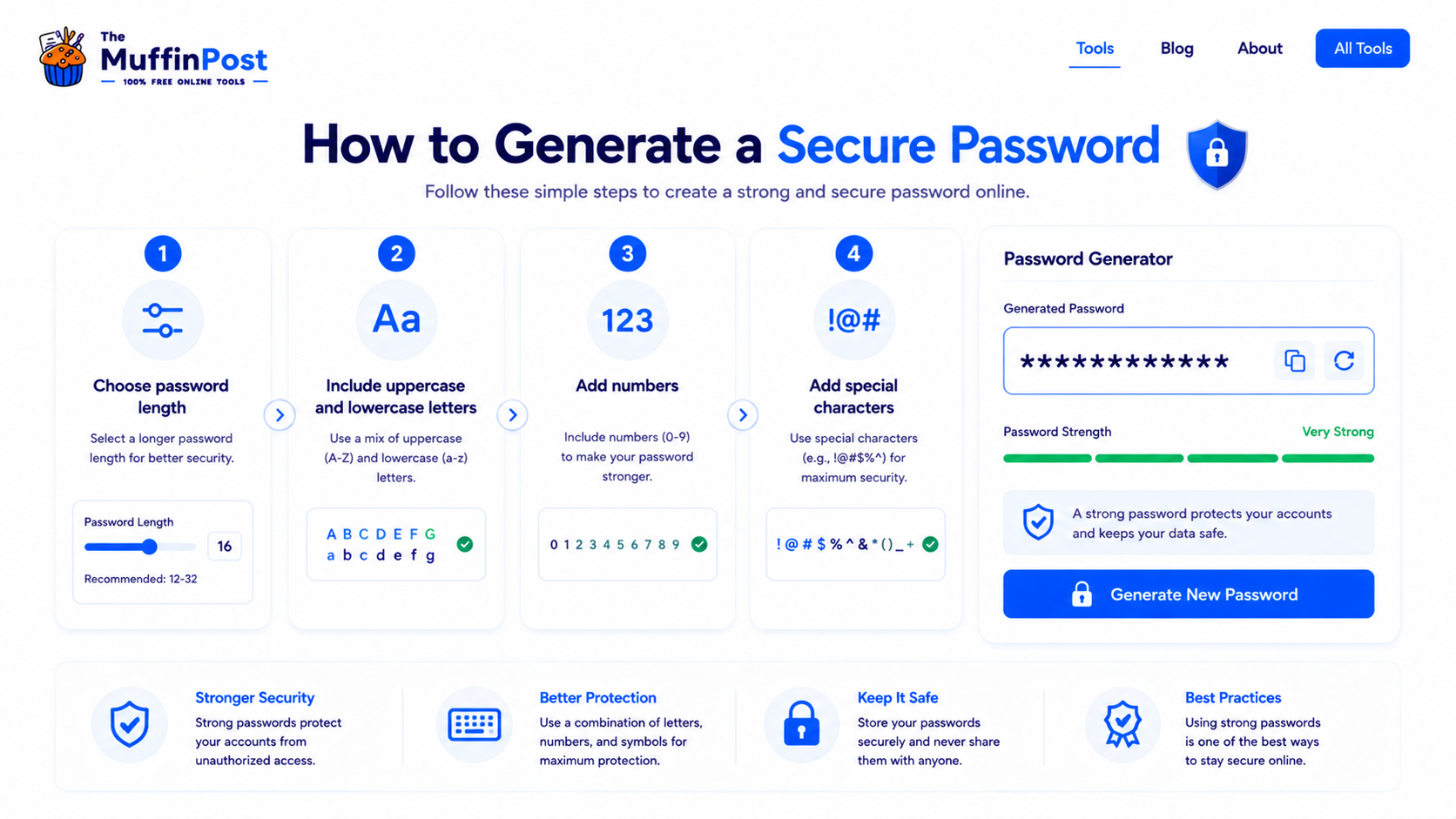
An online password generator can create a strong password in seconds. The goal is to avoid predictable patterns and build a password that is difficult to guess while still meeting the requirements of the website or app.
Step 1: Choose a strong length
Start with a password length of at least 12 to 16 characters. For important accounts, longer passwords are better when the website allows them.
Step 2: Use multiple character types
Include uppercase letters, lowercase letters, numbers and special characters. This creates more possible combinations and makes the password harder to guess.
Step 3: Avoid personal information
Do not use your name, username, birthday, phone number, pet name or common words related to you.
Step 4: Save it safely
After generating the password, store it in a reliable password manager instead of writing it in a plain text note or reusing it on multiple sites.
Complete secure password workflow
Creating a strong password is only the first step. A complete security workflow also includes safe storage and two-factor authentication.
Generate a Password
- Choose 16+ characters
- Include mixed characters
- Generate randomly
- Copy securely
Store It Safely
- Open a password manager
- Save the account
- Store the password
- Enable autofill
Protect the Account
- Use a unique password
- Enable 2FA
- Review recovery methods
- Save backup codes
Avoid Common Risks
- Do not reuse passwords
- Avoid personal details
- Never share passwords
- Do not save in plain text
Strong vs weak passwords
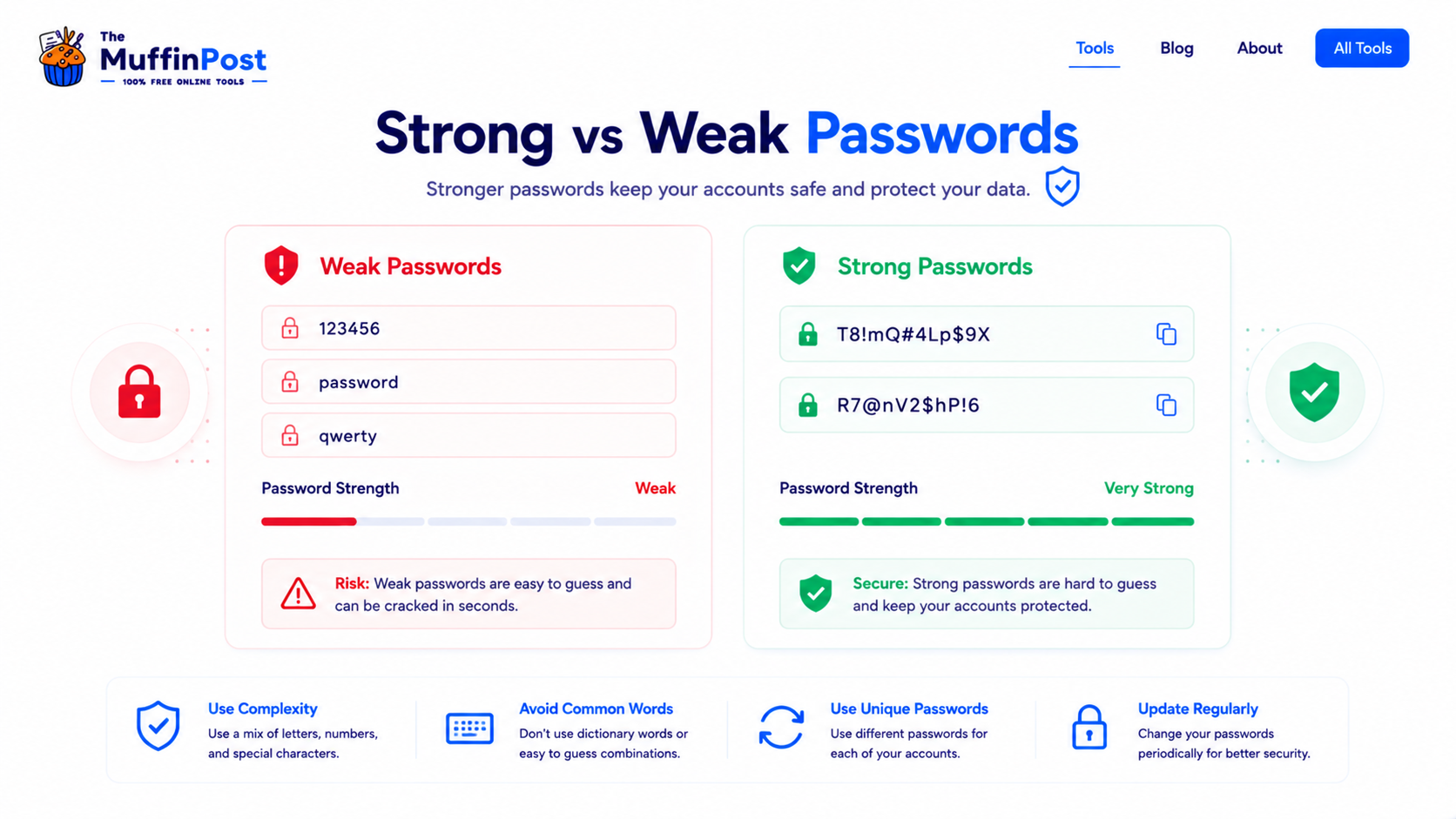
The difference between a strong and weak password is predictability. Weak passwords are short, common or based on personal information. Strong passwords are long, random and unique.
| Password type | Example | Why it matters |
|---|---|---|
| Very weak | 123456 | Common and easy to guess. |
| Weak | john1990 | Uses personal information and a predictable pattern. |
| Better | river-coffee-window-planet | Longer and easier to remember, but should be unique. |
| Strong | T8!mQ#4Lp$9X | Random, mixed characters and hard to predict. |
Password security best practices
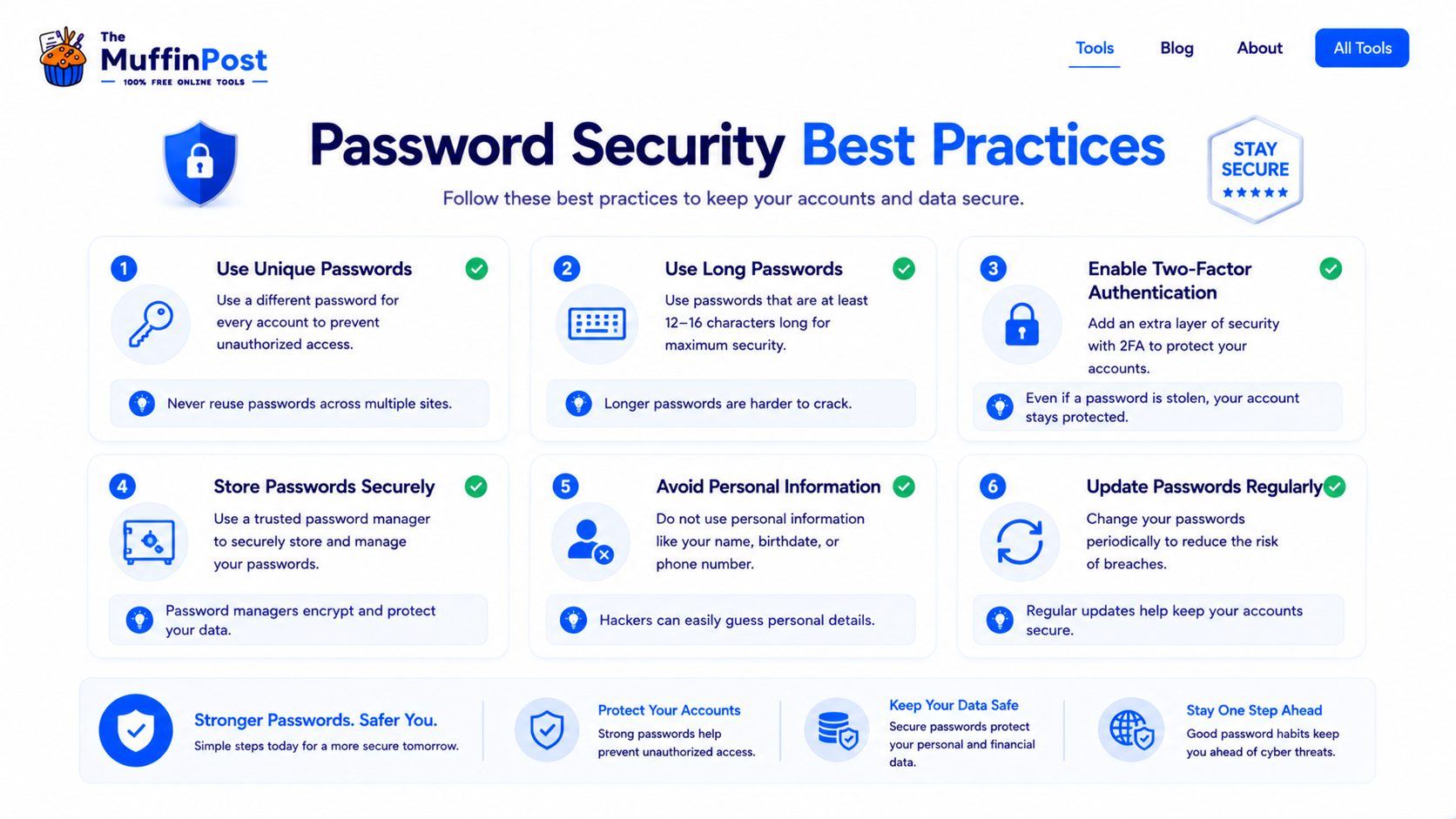
Generating a secure password is only one part of account protection. You also need good habits for storing, updating and protecting your passwords over time.
Use unique passwords
Every important account should have a different password. Reusing one password creates more risk.
Enable 2FA
Two-factor authentication adds an extra layer of protection beyond the password.
Store securely
Use a password manager instead of saving passwords in plain text files or screenshots.
Common password mistakes to avoid
Many account security problems start with simple mistakes: using short passwords, reusing the same password everywhere, sharing passwords or saving them in unsafe places.
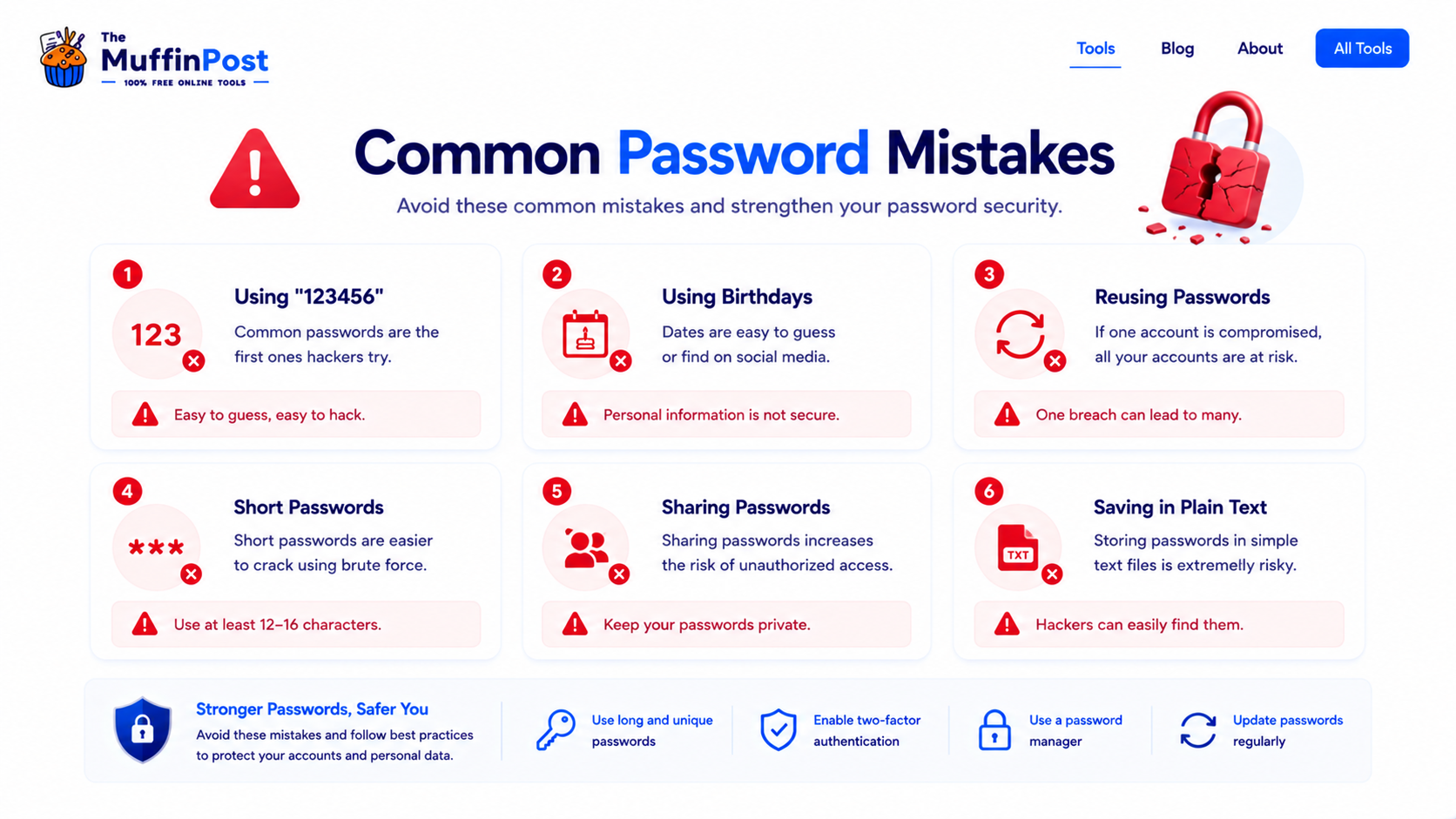
If one website is compromised, reused passwords can put other accounts at risk too.
Birthdays, names, favorite teams and phone numbers are easier to guess than random passwords.
Notes, screenshots and unprotected files can expose your passwords if someone accesses your device.
Should you use a password manager?
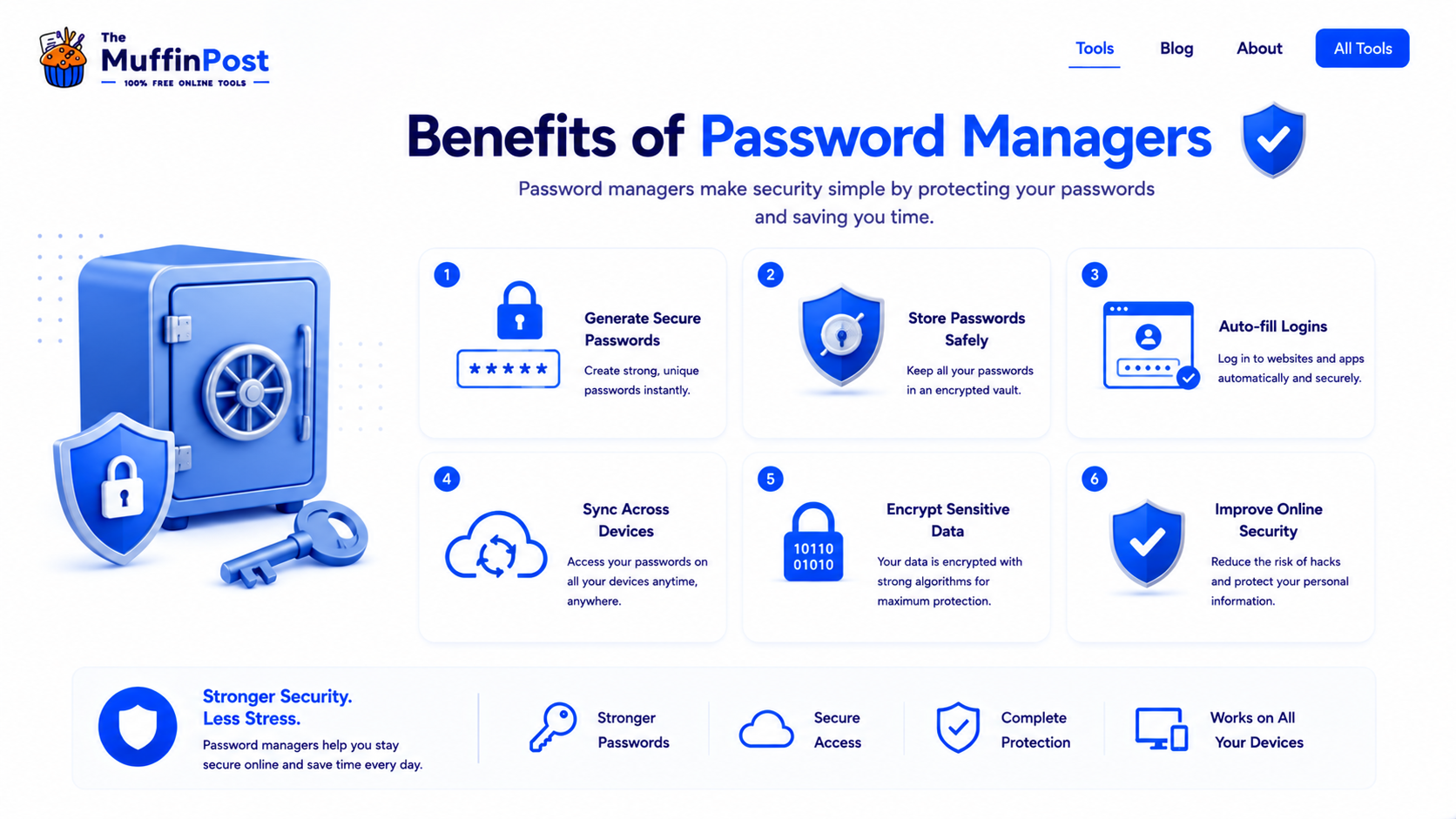
A password manager helps you create, store and autofill strong passwords. This makes it easier to use unique passwords for every account without memorizing each one manually.
Start here: create a strong password
Generate a long random password, store it in a password manager and enable two-factor authentication for important accounts.
Open Password GeneratorView Developer ToolsDeveloper Security Learning Center
Continue with related guides about encoding, hashing and developer security.
Frequently asked questions
How do I generate a secure password online?
Use a password generator, choose a strong length, include uppercase and lowercase letters, numbers and symbols, then store the password safely.
What makes a password strong?
A strong password is long, random, unique and difficult to guess. It should not contain personal information or common words.
How long should a secure password be?
A good password should usually be at least 12 to 16 characters. Longer passwords are better when the website supports them.
Should I use the same password on multiple sites?
No. Each important account should have a unique password so one compromised account does not endanger others.
Are password generators safe?
Password generators are useful for creating random passwords. For safety, use trusted tools and store the generated password securely.
Is a passphrase better than a password?
A long passphrase can be strong if it is unique and not predictable. Random generated passwords are also strong when stored safely.
Do I still need two-factor authentication?
Yes. Two-factor authentication adds extra protection even if a password is stolen or guessed.
Where should I store secure passwords?
Use a reputable password manager instead of saving passwords in plain text notes, screenshots or unprotected documents.

About the author
The MuffinPost Editorial Team creates practical guides for online tools, productivity, file conversion, calculators, marketing workflows and developer utilities.
Protect your accounts with stronger passwords
Create unique passwords, store them safely and add two-factor authentication wherever possible.
Generate a PasswordBrowse Developer Tools